Power Automate connector
Updated
Overview#
The DocXtract Power Automate connector adds an Extract Document action to your flows: a file goes in, structured fields come out, ready for SharePoint, Dataverse, Excel, Teams, or any other action. It is a custom connector that calls the same v3.1 API as every other integration, so accuracy, credit cost, and document limits are identical.
Before you start#
- An API key from the client portal → Settings
- The document types your key permits — check on the Test API page
- Documents as PDF, JPG, or PNG, up to 10 MB
- A Microsoft 365 account with a Power Automate Premium licence — flows that use a custom connector will not run without it
- The connector package from support@docxtract.io: an OpenAPI definition, a short C# script, and an icon
Setup#
Importing the connector is a one-time job for whoever administers your Power Platform environment. Everyone in the environment can then use it.
1. Import the connector#
In make.powerautomate.com open Data → Custom connectors, choose New custom connector → Import an OpenAPI file, name it DocXtract, and upload the definition from the package. On the General tab upload the icon; the Security and Definition tabs need no changes.
Custom connectors → New custom connector → Import an OpenAPI file, named DocXtract
2. Add the script#
Power Automate cannot build a file upload on its own, so the connector carries a small script that repackages the file. On the Code tab, switch Code Enabled on, paste the script from the package, select the ExtractDocument operation in the dropdown beneath the editor, and choose Update connector.
Custom connector Code tab with Code Enabled on and ExtractDocument selected
3. Create a connection#
Open the connector and choose Create connection. Enter your API key with the Bearer prefix, exactly Bearer sk_…. The connection is saved once and reused by every flow.
Create connection dialog asking for the API key, value left blank
4. Use it in a flow#
Add the DocXtract → Extract Document action after any step that produces file content, and map that output to Document File. Pick a Document Type from the dropdown.
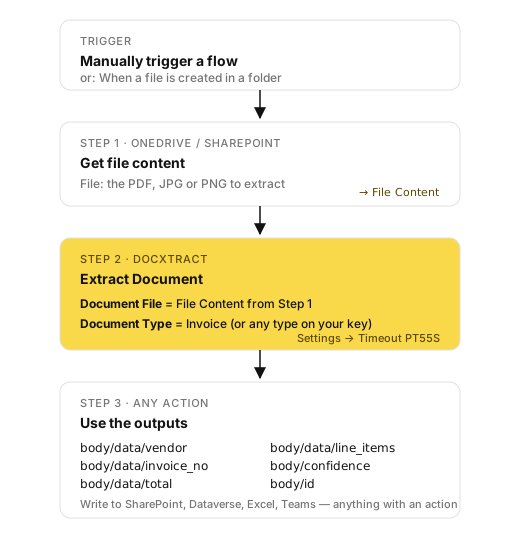
Sources known to work as-is:
| Source | Map to Document File |
|---|---|
| OneDrive Get file content | File Content |
| SharePoint Get file content | File Content |
| OneDrive Get file content using path | File Content |
| Manually trigger a flow with a file input | the file variable |
Flow designer showing Extract Document with Document File mapped from Get file content
5. Set a timeout#
Extraction can take longer than Power Automate's default patience, which leads to needless retries and double charges. On the Extract Document step open … → Settings and set Timeout to PT55S.
Action Settings panel with Timeout set to PT55S
Using the outputs#
Every later step sees the result under body/:
| Output | Meaning |
|---|---|
body/data | The extracted fields — vendor, invoice_no, total, line_items, … depending on document type |
body/confidence | high, medium, low, or critical_fail |
body/document_type | The type that was processed |
body/id | Extraction id, useful as a correlation key |
body/processing_time_ms | How long the extraction took |
body/data is an open map that varies by document type. To see the fields for yours, run one document through the Test API page and read the JSON.
What to expect#
- Credits are per page. A 10-page document costs 10 credits.
- Rate limits are per key — 10 requests per minute by default. A flow triggered on every file in a busy folder shares that budget with anything else using the same key; add a concurrency limit or a delay if you see
429. - PDFs over 3 pages are split and processed in parts, so they take noticeably longer than single-page documents. This is normal — hence the timeout above.
Troubleshooting#
| Symptom | Cause |
|---|---|
401 authentication_failed | Key is revoked or expired, or the connection value is missing the Bearer prefix |
400 invalid_file | Document File is not mapped to the file content output, or is mapped to metadata instead |
400 invalid_file_type | Not a PDF, JPG, or PNG |
413 file_too_large | Over 10 MB |
| The action is greyed out or the flow will not save | No Premium licence on the account running the flow |
| Extraction returns unexpected fields | Wrong document type selected; it defaults to invoice |
429 during a burst of files | Rate limit — 10 requests/minute per key |
| Stops working suddenly, mid-month | Credit cap reached; see quotas |
More detail in common problems.
Support#
support@docxtract.io — include the document type and roughly when the failure happened. Never send your API key.
Something wrong or missing on this page? Tell us.