API keys in the portal
Updated
Where your keys are#
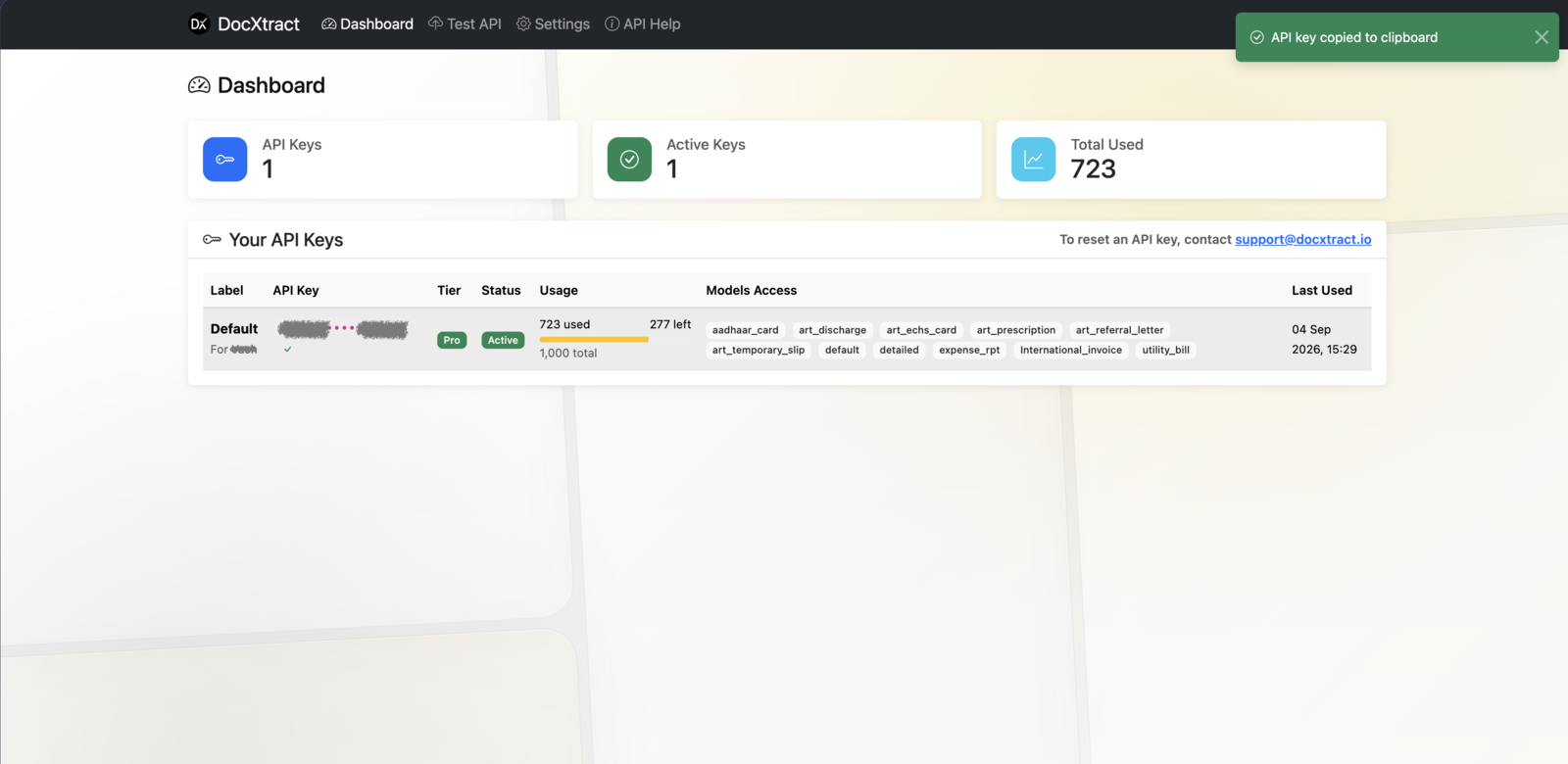
Dashboard. Every key on your account is listed with:
| Column | Meaning |
|---|---|
| Label | The name given to the key, so you can tell several apart |
| API Key | Masked — first four and last four characters only |
| Status | See below |
| Models Access | Which document types this key may extract |
| Usage | Credits consumed against this key's quota |
| Last Used | When the key last made a successful call, or Never |
Three tiles at the top summarise the account: API Keys, Active Keys and Credits Used.

Copying a key#
Keys are shown masked. Use the copy control on the Dashboard to put the full value on your clipboard — it is fetched only when you ask for it, so the full key never sits in the page.
Status values#
| Status | What it means | What to do |
|---|---|---|
| Active | Working normally | — |
| Expired | Past its expiry date | Request a plan change from Settings → Billing & Plan |
| Revoked | Switched off — by you (rotate / revoke) or by us | Listed under revoked keys below the table; its history stays on the Usage page |
| Quota Exhausted | Usage has reached the key's limit | Request a plan change, or move credits from another key |
Expired and quota-exhausted keys return 401 and 402 respectively — see error codes.
Models Access#
A key can only extract the document types assigned to it. Requesting anything else returns 400 unknown_model.
To see the exact list a key permits, call models — it costs no credits — or open the Test API page, where the document-type dropdown is populated from it.
Managing keys yourself#
Every key row has an actions menu (⋯) on the right.
| Action | What happens | Limits |
|---|---|---|
| Rotate key | A new key replaces this one with the same tier, document types, quota and expiry. The old key is revoked immediately. | Any account |
| Rename | Changes the label only. | Labels must be unique among your active keys |
| Set expiry | Gives the key an expiry, or brings an existing one forward. | Can never be later than the current expiry |
| View usage | Opens the Usage page filtered to this key. | — |
| Revoke | Switches the key off for good. Unused credits move to your oldest other metered key. | Not available for your only active key — rotate it instead |
A new key is shown exactly once, in a dialog, straight after rotation or creation. Copy it then. If you miss it, the copy control on the Dashboard still works while you are signed in. You also receive an email confirming the change (the email never contains the key).
Adding a key#
Paid accounts can hold up to five active keys; choose Add key above the table. Pick a label and the key to fund it from. On a metered plan you move a number of credits off that key onto the new one, so your account total never changes. On an unlimited plan the new key is unlimited too. The new key inherits the source key's tier, document types and expiry (you may pick an earlier expiry).
A separate key per integration is worth the minute it takes: usage becomes attributable per system on the Usage page, and one can be rotated or revoked without disturbing the others.
Alerts#
The Dashboard and Settings pages show a banner when a key is at 80 % or 100 % of its quota, or will expire within 7 days or 24 hours, and when it has expired. The same thresholds trigger one email each, so a key that silently stops working is a thing of the past.
Usage and quota#
Usage counts credits, and credits are per page — a ten-page document costs ten. It is not a request counter.
This is separate from rate limiting, which caps requests per minute rather than total consumption. See rate limits and quotas.
Something wrong or missing on this page? Tell us.