Business Central connector
Updated
Overview#
The DocXtract Business Central connector turns a supplier invoice into a draft purchase invoice in Dynamics 365 Business Central, with line items, in one Power Automate action. It extracts the document with the same v3.1 API as every other integration, then writes to Business Central through its standard API.
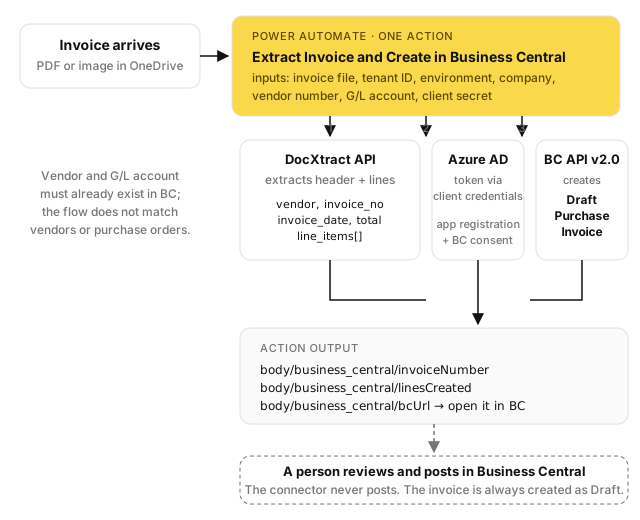
What it does not do. It never posts the invoice — a person reviews and posts in Business Central. It does not match or consume purchase orders, and it does not look vendors up by name: you supply the vendor number and the G/L account to post lines against.
Before you start#
- An API key from the client portal → Settings
- Documents as PDF, JPG, or PNG, up to 10 MB; the document type is always invoice
- A Microsoft 365 account with a Power Automate Premium licence
- A Business Central environment (sandbox or production) and an admin who can grant consent
- Permission to create an app registration in your Azure (Entra) tenant
- The connector package from support@docxtract.io: an OpenAPI definition and a short C# script
Setup, part 1 — let the connector talk to Business Central#
Business Central will only accept API calls from a registered application. This part is done once by an Azure and Business Central administrator.
1. Register an application#
In the Azure portal open App registrations → New registration. Name it DocXtract BC Connector, keep Accounts in this organizational directory only, and add a Web redirect URI of https://businesscentral.dynamics.com/OAuthLanding.htm. After registering, note the Application (client) ID and Directory (tenant) ID.
Azure portal App registrations → New registration with name and redirect URI filled in
2. Grant API permissions#
Under API permissions → Add a permission → Dynamics 365 Business Central, choose Application permissions and tick API.ReadWrite.All and Automation.ReadWrite.All. Add them, then Grant admin consent.
API permissions page listing API.ReadWrite.All and Automation.ReadWrite.All with consent granted
3. Create a client secret#
Under Certificates & secrets → New client secret, describe it docxtract and pick an expiry. Copy the Value immediately — it is shown once. This is the secret the flow will pass to the connector.
4. Register the application in Business Central#
In Business Central search for Microsoft Entra Applications and choose New. Enter the Client ID from step 1, a description, and set State to Enabled. Under User Permission Sets add D365 BUS FULL ACCESS and fill in the Company column with your company name. Finally choose Grant Consent and sign in as an administrator.
Business Central Microsoft Entra Applications card with Client ID, State Enabled, and a permission set line with Company filled
Authentication_InvalidCredentials. And State must be Enabled before you choose Grant
Consent.Setup, part 2 — import the connector into Power Automate#
These steps are the same shape as the Power Automate connector; only the names differ.
1. Import the connector#
In make.powerautomate.com open Data → Custom connectors → New custom connector → Import an OpenAPI file. Name it DocXtract for Business Central and upload the definition from the package. On the Security tab set the authentication type to API Key, parameter name Authorization, location Header.
2. Add the script#
On the Code tab switch Code Enabled on, paste the script from the package, select the ExtractAndCreateInvoice operation, and choose Update connector.
3. Create a connection#
Choose Create connection and enter your DocXtract API key with the Bearer prefix. The Business Central credentials are not part of the connection; they are inputs on the action.
Using it in a flow#
Add Extract Invoice and Create in Business Central after a step that produces file content, such as OneDrive or SharePoint Get file content, and fill in:
| Input | Value |
|---|---|
| Invoice File | File Content from the previous step |
| Invoice Model | Invoice (standard), or Invoice (detailed) for itemised invoices with more header fields |
| BC Tenant ID | The Directory (tenant) ID from part 1, step 1 |
| BC Environment | Your environment name — a sandbox such as BC-Sandbox while testing, Production when live |
| BC Company ID or Name | The company GUID is safest; the display name also works if it is unique |
| BC Vendor Number | An existing vendor in Business Central |
| BC G/L Account Number | The account lines are posted against; it must allow Direct Posting |
| BC Client Secret | The secret value from part 1, step 3 — treat it like a password |
Extract Invoice and Create in Business Central action with tenant, environment, company, vendor and G/L account fields filled, secret blank
Set a Timeout of PT55S on the action (… → Settings), exactly as for the Power Automate connector.
The action returns, under body/business_central, the new invoiceNumber, linesCreated, status (always Draft), and bcUrl — a link straight to the environment — which you can drop into a Teams or email notification. Extraction details are under body/extraction.
Draft Purchase Invoice open in Business Central showing the header and the created lines
How fields are mapped#
| Business Central | From the invoice |
|---|---|
| Vendor invoice number | The supplier's invoice number |
| Invoice date, due date, currency | As extracted; currency falls back to the vendor default |
| Lines | One Account line per extracted line item, with description, quantity, and unit cost, on the G/L account you supplied |
| Purchase order reference | Not set — the Business Central API does not allow it at creation. Add it manually after review |
What to expect#
- Credits are per page. A 10-page invoice costs 10 credits.
- Rate limits are per key — 10 requests per minute by default.
- Invoices over 3 pages are split and processed in parts, so they take noticeably longer.
- The invoice always lands as Draft. Nothing is posted, and nothing is matched to a PO.
Troubleshooting#
| Symptom | Cause |
|---|---|
401 authentication_failed | DocXtract key revoked or expired, or the connection value lacks the Bearer prefix |
401 bc_token_failed | Wrong client secret (the Value, not the secret ID), missing API permissions, or admin consent not granted |
401 bc_create_failed | The Entra application in Business Central is not Enabled, consent was not granted, or the Company column is blank |
500 bc_create_failed | Vendor number or G/L account does not exist, or the account does not allow Direct Posting |
400 missing_parameters | One of the required inputs above is empty |
422 extraction_failed | The file is not a readable invoice — check quality and orientation |
| Stops working suddenly, mid-month | Credit cap reached; see quotas |
More detail in common problems.
Support#
support@docxtract.io — include the document type and roughly when the failure happened. Never send your API key or your client secret.
Something wrong or missing on this page? Tell us.